Should You Connect Your Business Accounts to AI?
Should you connect your business accounts to AI? What Claude, ChatGPT and Gemini can see and do once connected, where it goes wrong, and a seven-rule policy.
Every AI assistant now has a button marked Connect. Connect Gmail, Drive, QuickBooks, HubSpot, your Shopify store. One click on Allow and the assistant stops guessing about your business and starts working from its real data.
For a business, that click hands over more than most owners realise: the customer list, the order history, the inbox where suppliers send bank details. In September, Check Point showed how a single planted instruction could make ChatGPT read a user's connected Gmail and pass it to another account, with nothing on screen but a small "Talked to Gmail" label. OpenAI has since shut the hole.
So should you connect your business accounts to AI? For most small businesses, yes. Narrowly, on a business plan, with write actions set to ask first. Here's what that means in practice, and how the newest tools handle it.
What connecting actually hands over
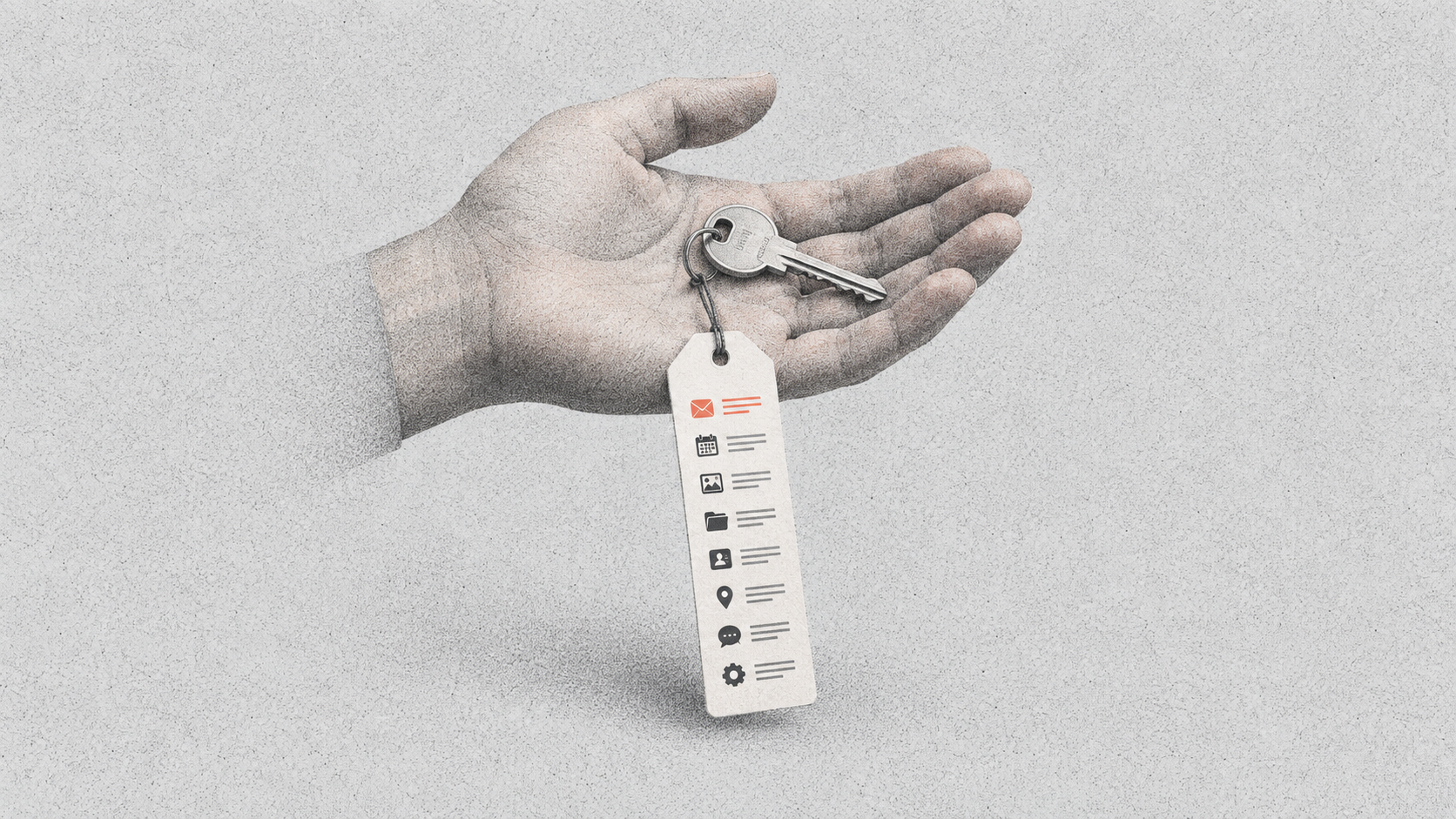
Most people picture a connection as a door: the assistant walks into your Gmail and looks around. It's closer to a bunch of keys. You grant a list of named actions, and the assistant can do those and nothing else.
The list is usually longer than people expect. When AI Manual opened Claude's permissions for a Shopify connection in September, it held 34 separate actions. Some were harmless, like searching documentation. Others included List Customers, List Orders, Create Discount and Set Inventory. Connecting a shop to get help with product descriptions also hands over the customer database.
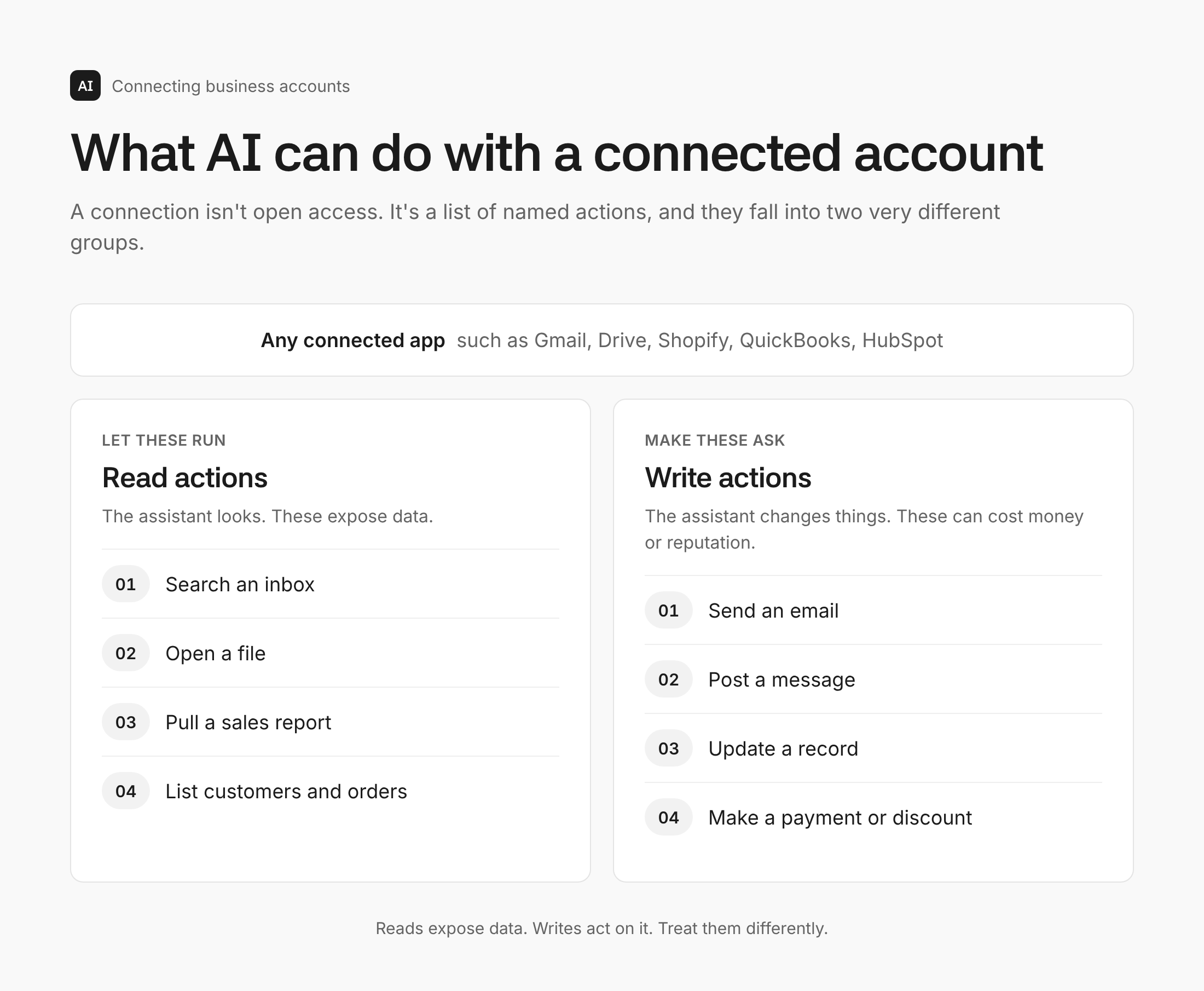
The split that matters is between two kinds of action:
- Read actions let the assistant look: search an inbox, open a file, pull a sales report.
- Write actions let it change things: send an email, post in Slack, issue a discount, update a record, move money.
Reads expose data. Writes can cost you money or reputation. Every sensible connection policy starts by treating them differently.
How the newest business tools handle it
All three big assistants added business connections this year, and they take noticeably different approaches.
Claude. Claude's connectors sit under Customize in settings, and each one lists every tool it holds, grouped into read-only, interactive and write/delete. Each tool can be set to always allow, ask each time, or blocked. In May, Anthropic launched Claude for Small Business, a package of ready-made workflows built around connectors for QuickBooks, PayPal, HubSpot, Canva and Docusign. Its promise is that "you approve before anything sends, posts, or pays." On Team and Enterprise plans, admins can now authorise a connector once for the whole organisation, choose which roles get it, and narrow the permissions it can request. At launch that only works with Okta as the sign-in provider.
ChatGPT. OpenAI calls connections "apps", and they have one permission setting covering all of them rather than per-tool controls. According to Check Point's write-up, which quotes OpenAI's documentation, the default is "Important actions": ChatGPT reads from your apps without asking and asks before actions it considers important. A stricter "Always ask" setting is one click away. On Business, Enterprise and Edu plans, company knowledge lets ChatGPT search connected tools like Slack, SharePoint and Google Drive while respecting the permissions people already have in them.
Gemini. For businesses on Google Workspace, Gemini now connects directly to Asana, Atlassian Rovo, HubSpot, Mailchimp, QuickBooks, Monday and Salesforce, from inside Gmail, Docs, Sheets and Chat. Google switched it on by default for everyone with Gemini access. Admins can turn it off for the whole domain, a department or a group. In October, Google added a settings hub for the Gemini app that connects more than 40 external services, though most of those are only available in English in the US for now.
The verdict. Claude gives a small business the most control, because you can see and set each action one by one. ChatGPT is easier and less transparent: one dial, with someone else's definition of "important". If your business runs on Google Workspace, Gemini is the one to check first, precisely because it arrived already switched on.
Where it goes wrong
Four failure modes. The last two matter most.
- The connection nobody remembers. Connections persist. Someone connects Drive for a one-off project in March, and in October it's still live in every new chat, holding the same permissions. Nothing reminds you it's there.
- Personal accounts on work tools. An employee connects their own ChatGPT or Claude account to the company HubSpot. When they leave, you remove them from HubSpot, but forget the AI account that still holds a link to it. Managed sign-in, where connections go through the company's identity provider, closes this gap. On personal plans, nothing does.
- The provider's own bugs. The Check Point flaw sat in OpenAI's infrastructure, not in anyone's settings. Check Point found it in June 2026 and published in September, after OpenAI confirmed the internal service involved had been decommissioned. No setting protects you from a vendor's mistake. The only real defence is connecting fewer things.
- Reading from strangers, writing somewhere that matters. If an assistant can read your inbox and also send payments or post to Slack, anyone who can email you can try to give it instructions. This is called indirect prompt injection: hidden text in an email, web page or document that the AI reads as a command. It's no longer theoretical. The Cloud Security Alliance reports that Google saw malicious hidden instructions on the web rise 32% between November 2025 and February 2026. One payload researchers found told AI agents to send a fixed $5,000 PayPal transfer.
That last combination of untrusted reading plus powerful writing is behind most serious connector incidents. It deserves its own audit.
A connection policy for a small team
Seven rules that take an afternoon to put in place and very little effort to keep.
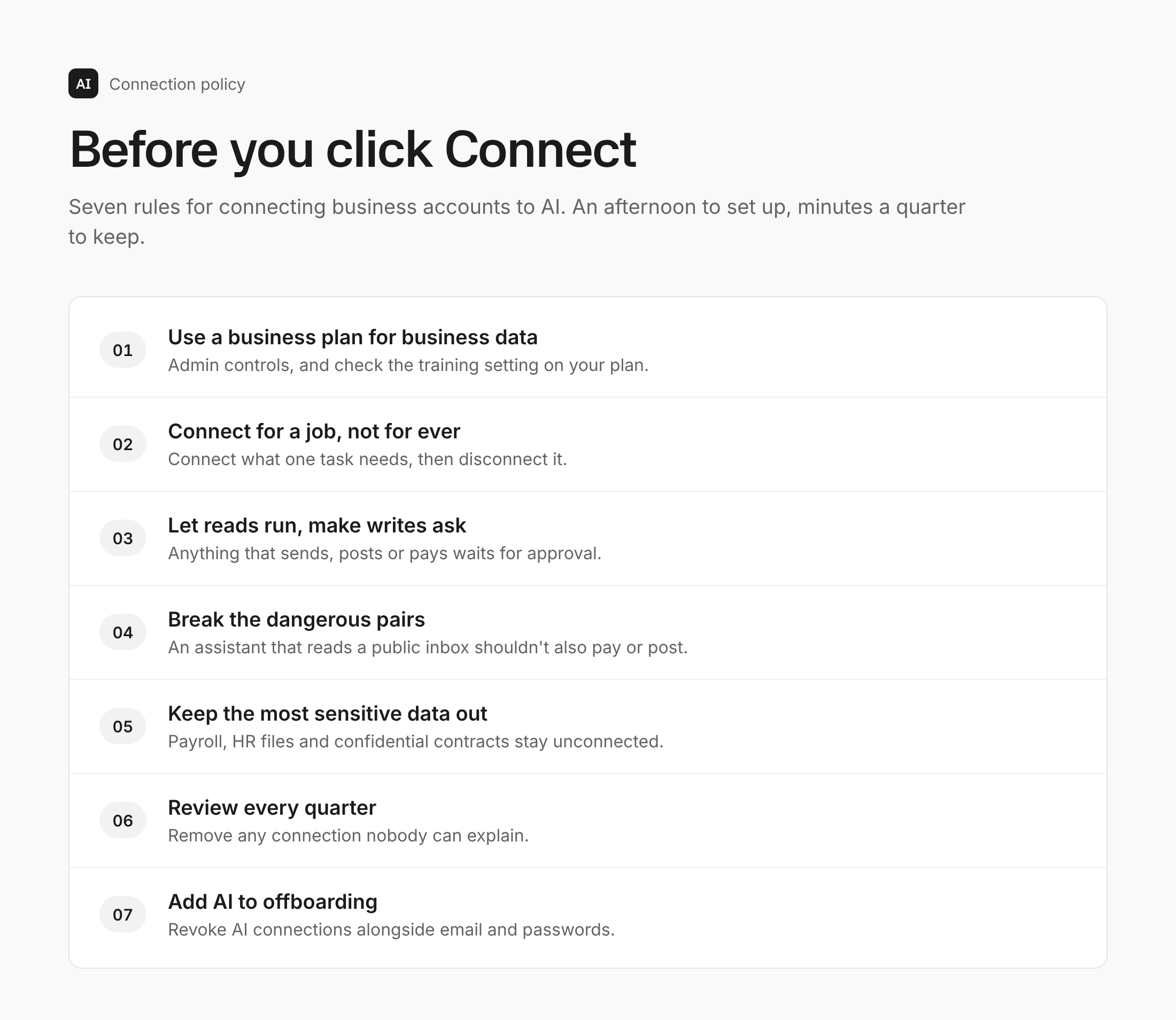
- Use a business plan for business data. Team, Business and Enterprise plans add admin controls, and Anthropic says it doesn't train on data from its Team and Enterprise plans by default. Check the equivalent setting on whichever plan you use.
- Connect for a job, not for ever. Connect what a specific task needs, and disconnect it when the task ends.
- Let reads run, make writes ask. In Claude, set the write/delete group to Needs approval. In ChatGPT, consider Always ask for anything that touches money or customers.
- Break the dangerous pairs. If one assistant reads an inbox anyone can email, don't give it payment, posting or sending powers too.
- Keep the most sensitive data out entirely. Payroll, HR files and anything covered by a confidentiality agreement are better pasted in deliberately, or not at all. The list of things you should never paste into an AI chat applies doubly to connections, because a connection shares them for you.
- Review every quarter. Open each assistant's connection settings and remove anything nobody can explain.
- Add AI to offboarding. When someone leaves, revoke their AI connections alongside their email and passwords.
A smarter starting point
Connections are a means, not a strategy. The businesses getting the most from AI start with one painful task and connect only what that task needs, which is also the approach in where a small business should actually start with AI.
AI Manual is building a system that does exactly that for your business: a few questions about how you work, then tailored guidance on what to connect, what to automate and what to leave alone. It isn't open yet. Contact us and you'll be among the first in.
Frequently asked questions
Does connecting my accounts mean the AI company reads my business data?
Not in the sense of a person browsing it. The assistant fetches specific items when a task calls for them, and those items become part of the conversation. Whether conversations are used for training is a separate setting that depends on your plan, so check it on its own.
Is it safer to paste information in manually?
For sensitive one-offs, yes. Pasting shares exactly what you chose and nothing more. Connections trade that precision for convenience, which is a fair trade for routine work and a poor one for anything you'd hate to see leaked.
Should every employee connect their own account?
Ideally not. Admin-managed connections on a business plan mean access follows your company sign-in, so it disappears when someone leaves. Personal connections live outside your control.
If I disconnect an app, is the data it already saw deleted?
Disconnecting stops future access. It doesn't remove what's already in chat history or anything the provider has stored, so delete the relevant conversations too if that matters.
The bit worth remembering
Connecting your business accounts is where AI goes from clever to useful, and you don't need to avoid it. Know that Allow means a specific list of actions, that a default has already been chosen for you, and that writes deserve a second look.
Start with whichever app has been connected longest. Open its permissions today, and decide whether every action on that list still earns its place.