How to Connect Shopify to Claude
How to connect Shopify to Claude in five steps, what the official connector can do with your store, and the money-side actions Shopify won't let it touch.
Running a Shopify store means a lot of clicking: updating listings, checking stock, setting up discount codes, digging through reports. Connecting Shopify to Claude lets you do most of that by typing what you want.
Shopify built the connector itself, so there's nothing to install from the App Store and no extra Shopify fee. Below are the setup steps, followed by what Claude can and can't do once it's connected.
What you need before you start
- A paid Claude plan. Connectors from Claude's directory work on Pro, Max, Team and Enterprise, according to Anthropic's help page.
- A computer. Shopify recommends a desktop browser for setup, and Claude's phone apps can't add new connectors yet.
- The right Shopify permissions. Staff can only hand Claude what their own account allows. If you can't edit products, neither can Claude.
How to connect Shopify to Claude
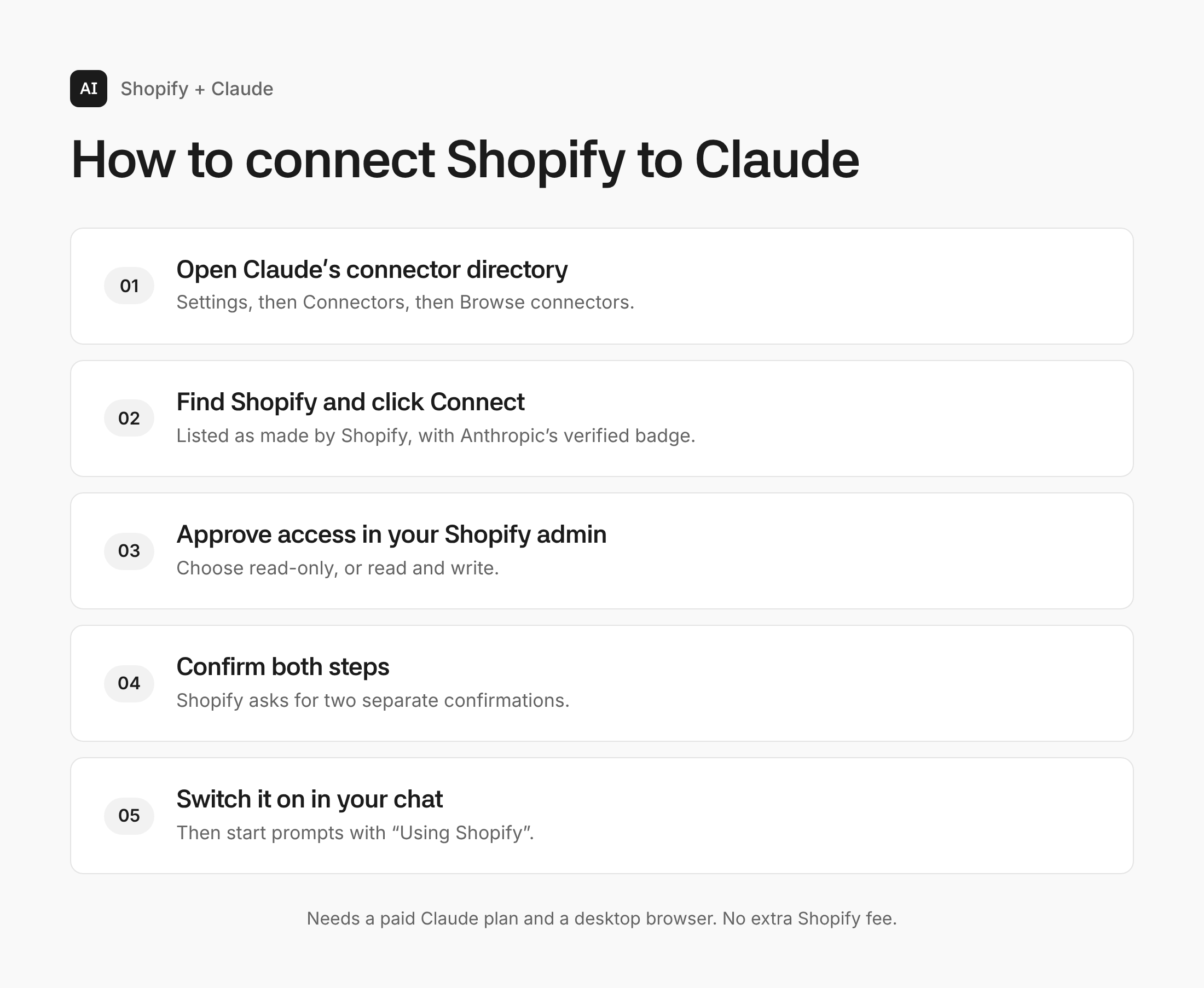
- Open Claude's connector directory. Go to Settings, then Connectors, then Browse connectors. You can also reach it from a chat through the tools menu.
- Find Shopify and click Connect. It's listed as made by Shopify, with Anthropic's verified badge.
- Approve access in your Shopify admin. Claude hands you over to Shopify, which shows the access level being requested: read-only, or read and write.
- Confirm. Shopify asks for two separate confirmations, one per step, then hands you back to Claude.
- Switch it on in your chat. Check the Shopify connector is enabled for the conversation, then start asking.
What Claude can do with your store
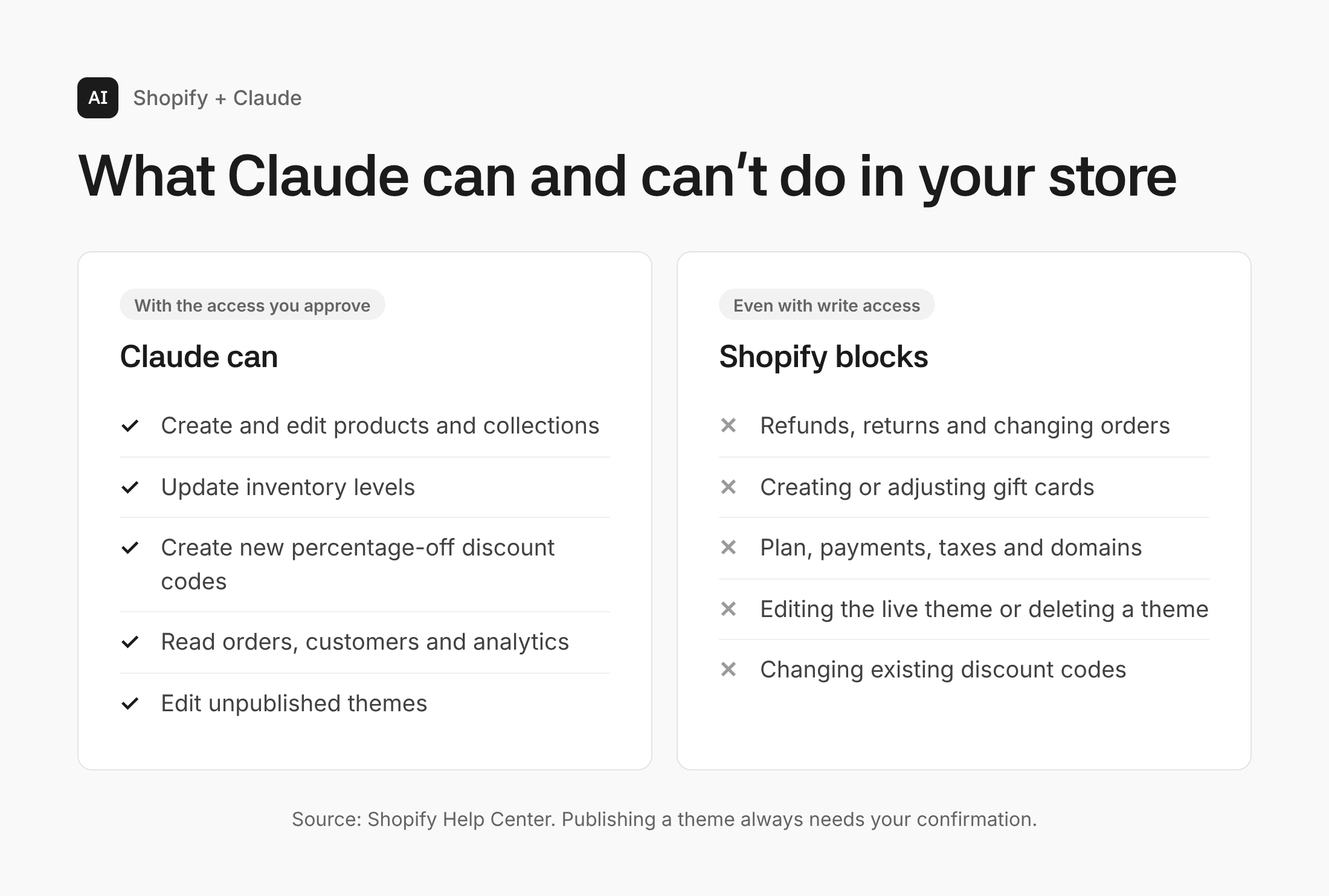
Shopify's own action list covers products, collections, inventory, new discount codes, digital products and edits to unpublished themes. Orders, customers and analytics are readable, so Claude can answer questions about how the store is doing.
Name Shopify in your prompt, or Claude may explain how to do the task instead of doing it. Three to try first:
Using Shopify, show me my 10 best-selling products this month and flag any with fewer than 20 units in stock.
Using Shopify, rewrite the description for [product name] so it leads with the main benefit. Show me the draft before you change anything.
Using Shopify, create a 15% off discount code called WINTER15 that starts next Monday and ends on 31 December.
The second prompt saves the most time. It's the same job as writing product descriptions that sell with AI, without copying text between windows.
What it won't touch
Even with full write access, Shopify blocks Claude from the money side of the business. According to Shopify's considerations page, it can't:
- Issue refunds, process returns, or cancel, capture or mark orders as paid
- Create or adjust gift cards
- Change your plan, payments, taxes or domains
- Edit your live theme or delete a theme
- Change existing discount codes, or create anything other than percentage-off codes
Orders and customers stay read-only, and publishing a theme always needs your confirmation first. For most small stores that split makes sense, because Claude handles listings and stock while refunds, payments and the live storefront stay with you.
Where it goes wrong
- Claude explains instead of acting. Start prompts with "Using Shopify" so it knows to use the connector.
- The wrong store answers. If you run more than one store, start a new conversation after switching, or Claude can keep working on the old one.
- Big batches stop halfway. Changes happen one at a time, so a long run can fail partway through. Check the results, especially on bulk status changes, which cap at 50 products.
- Mistakes are yours. Shopify says you're responsible for any incorrect change an AI tool makes. Start with read-only access until you trust it.
- You can't dial access down. To narrow permissions after approving them, uninstall the connector from your Shopify admin and reconnect at the lower level. Uninstalling is also how you cut access completely.
If you haven't decided whether to give AI write access at all, read whether to connect your business accounts to AI first.
Get AI advice built around your business
AI Manual is building a service that learns how your business runs and shows you which connections are worth making. It isn't open yet. Contact us and you'll be among the first in.
Start read-only, then widen access
Shopify has kept refunds, payments and the live theme out of Claude's reach, which makes this a low-risk first connection for a store owner. Connect with read-only access, ask about sales and stock for a week or two, and switch on write access when its answers have been reliable.